

GLOSSA LISTEN DOCUMENTATION · ANDROID
Android app guide
Applies to Glossa Listen v1.0.0
Connect to your Glossa Listen server, find a book, listen by chapter, and manage your library on Android. The screenshots below show both dark and light appearance.
These screens use a sample listener account and library. Your titles, progress, and badge counts will depend on your server and account. For creating accounts and adding books, see the server guide.
Connect and sign in
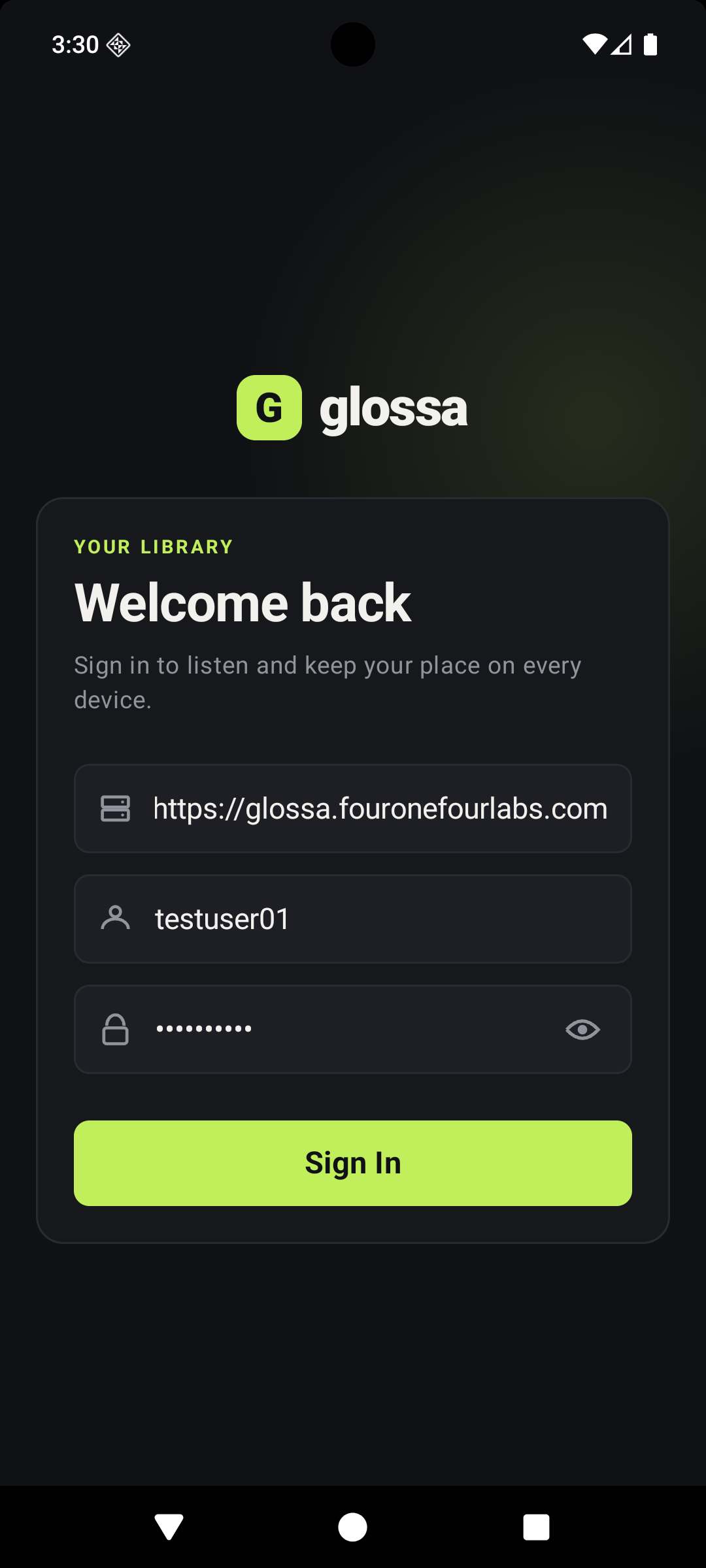
- Enter your Glossa Listen server address, including
https://. - Enter the username and password supplied by your server administrator.
- Tap Sign In to open your library.
The example uses https://glossa.fouronefourlabs.com. Use your own server address if it differs. The password in the screenshot is masked.
Use Home and the main controls
Home summarizes your library and listening activity. Continue Listening shows started titles, while Recently Added Audiobooks shows newer library items.
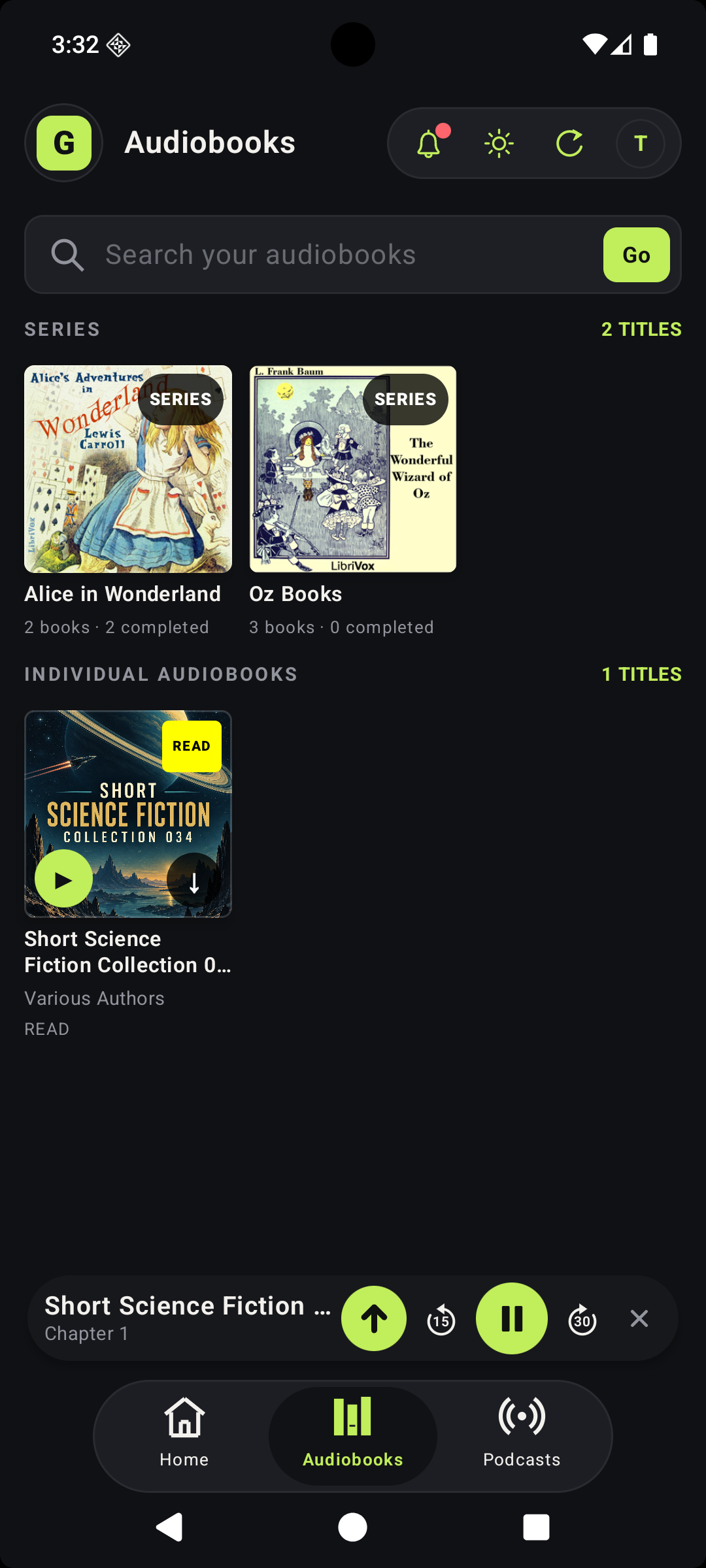
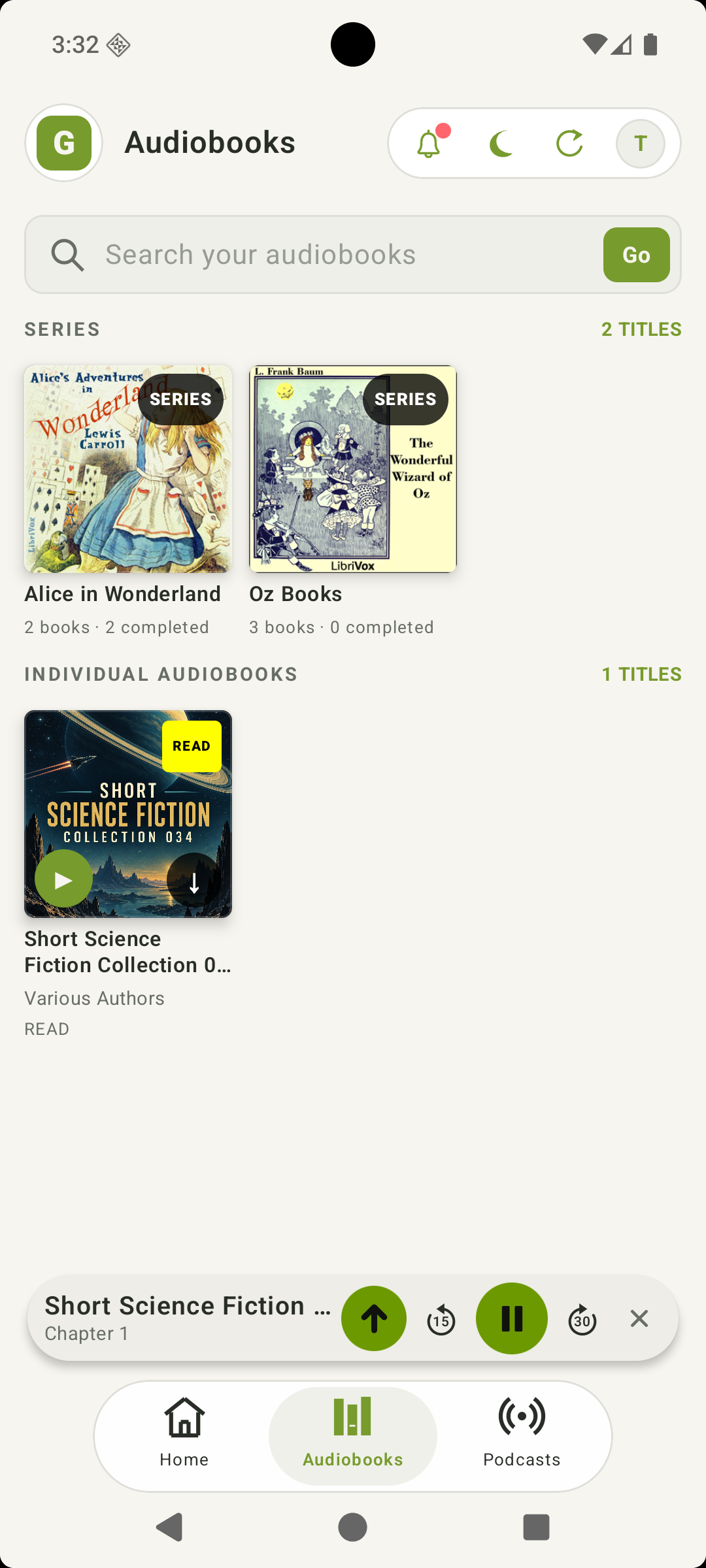
The bottom bar switches between Home, Audiobooks, and Podcasts. In the top bar, the bell opens notifications, the sun or moon switches appearance, the circular arrow refreshes the view, and your initial opens the account area.
A red dot on the bell indicates an unread notification.

Find, open, and review an audiobook
- Tap Audiobooks in the bottom bar.
- Use Search your audiobooks and Go, or browse the Series and Individual Audiobooks sections.
- Tap a book cover to read its details, credits, description, ratings, reviews, and chapters.
- Tap Play or Resume to listen. You can also tap Download or change its read status.
- Under Ratings and reviews, tap Rate this book to add your star rating and optional review.


Control playback and chapters
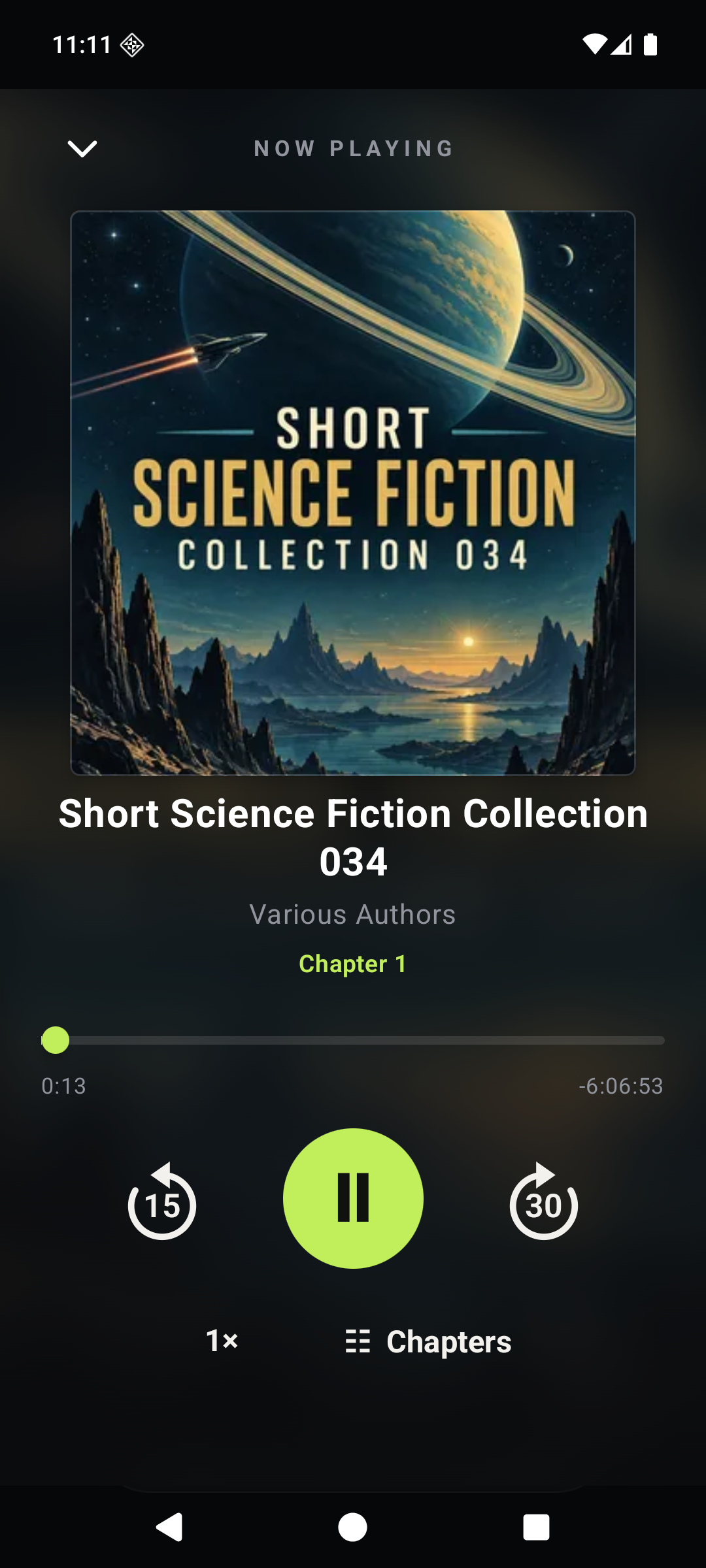
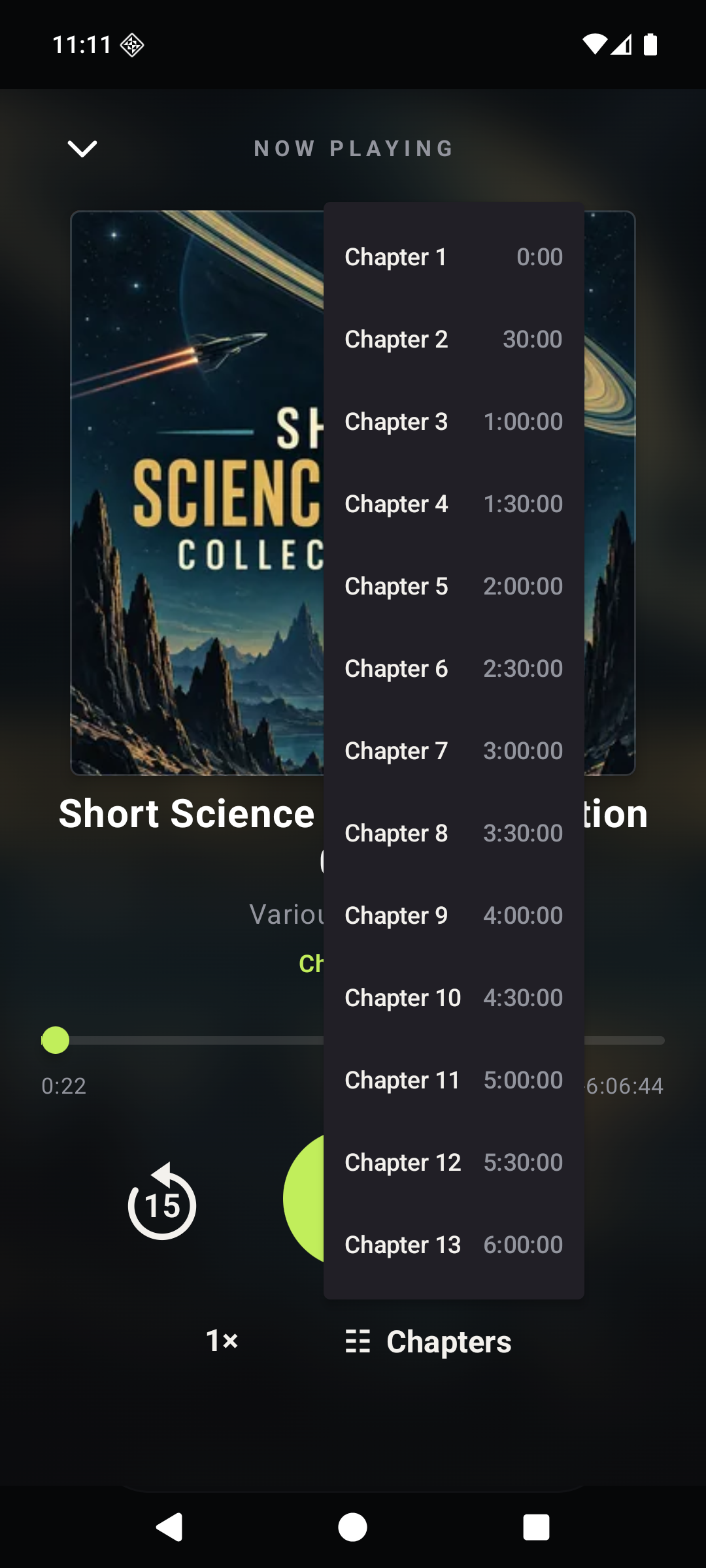
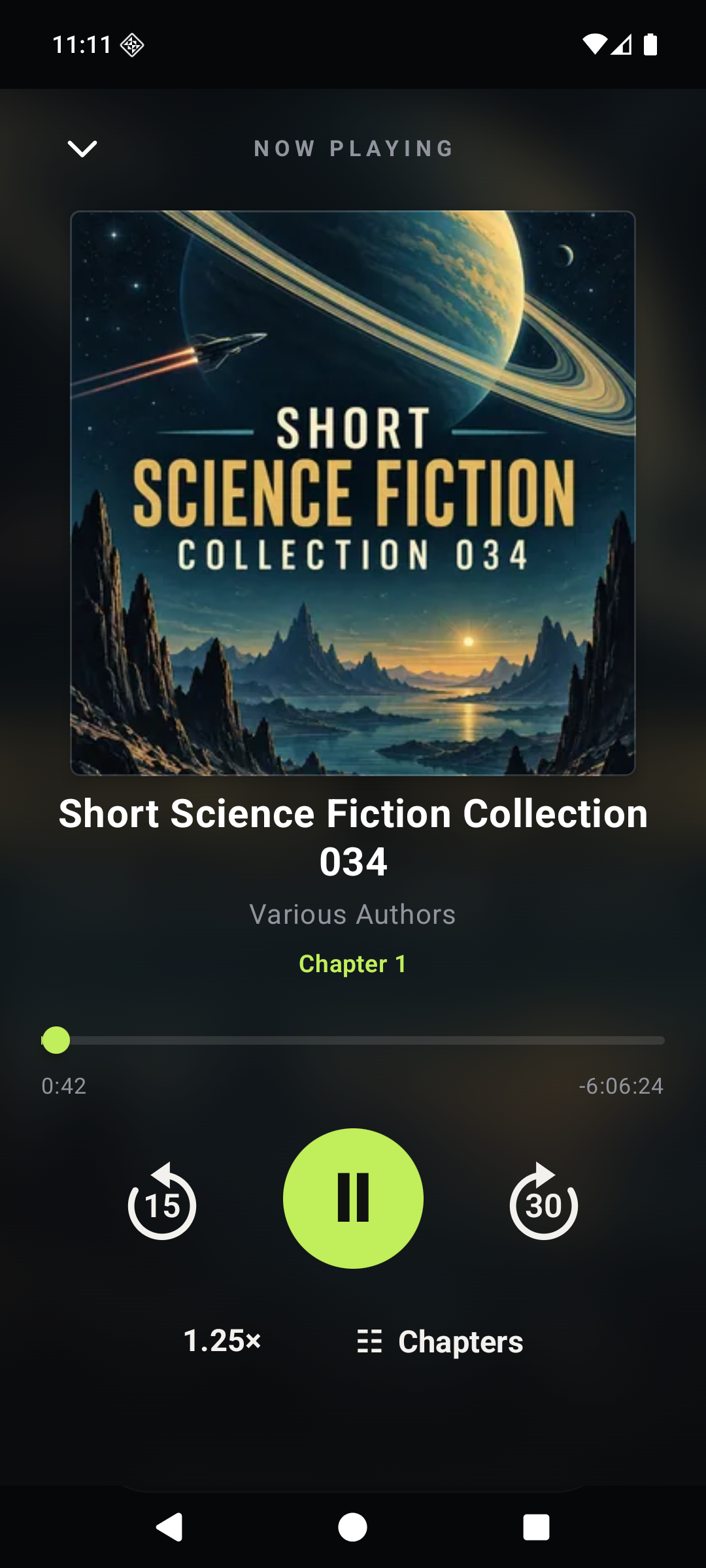
The full Now Playing screen shows cover art, the current chapter, elapsed and remaining time, and a progress bar. Use the centre button to pause or resume. The side controls jump back 15 seconds or ahead 30 seconds.
Tap Chapters to open the chapter list and choose a start point. Tap the speed value, such as 1×, to change playback speed; the example later shows 1.25×. Collapse the player with the downward chevron to keep browsing.
When the full player is closed, a mini-player stays above the bottom bar. Its controls reopen the full player, jump back 15 seconds, pause or resume, jump ahead 30 seconds, or dismiss the mini-player.
Browse and find podcasts
- Tap Podcasts in the bottom bar.
- Browse shows already added to your server, then open a show to view its episodes.
- Use podcast search to find a title, host, or topic. The example searches for science fiction.
- Tap Add on a search result if you are allowed to add that feed, then download episodes you want available offline.


Download for offline listening
- While connected, tap the downward arrow on a book card or Download in its details.
- Open Your Profile from your account control.
- Turn on Offline Mode to show only downloaded audiobooks and podcasts.
Offline Mode is a filter. Download the titles you need before you lose your connection.

Explore series and achievements
The series library groups related books. Open a card to see its artwork, description, books in order, completed count, and custom series badge. The current demo has no Science Fiction series, so the Alice collection is used for the detail example.


Manage your profile and security
Tap your initial to open the account menu. Your Profile shows your account role, Offline Mode, listening totals, activity, and notification switches.
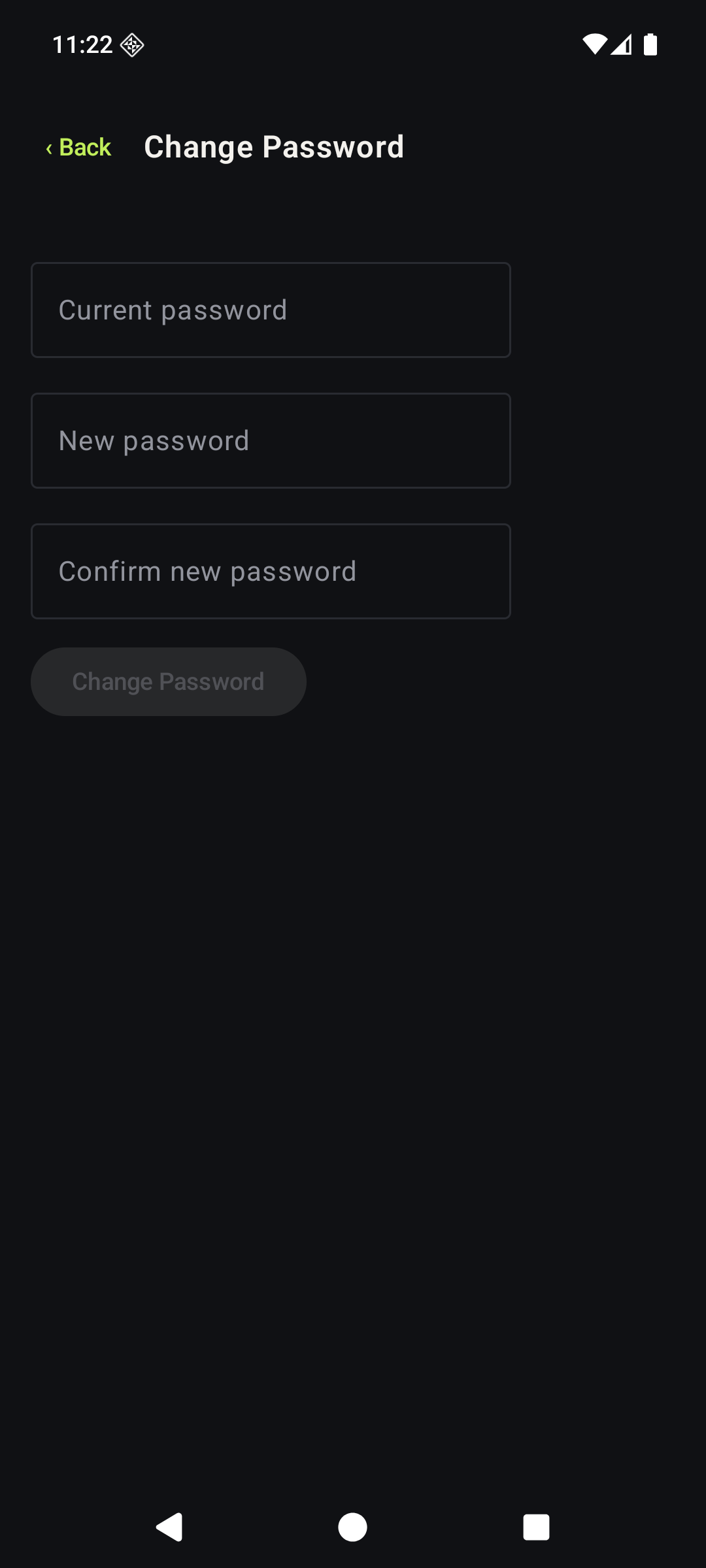
Use Change Password to enter your current password and the new password twice. Use Authenticator to add verification codes and save the recovery codes shown during setup.


Review notifications
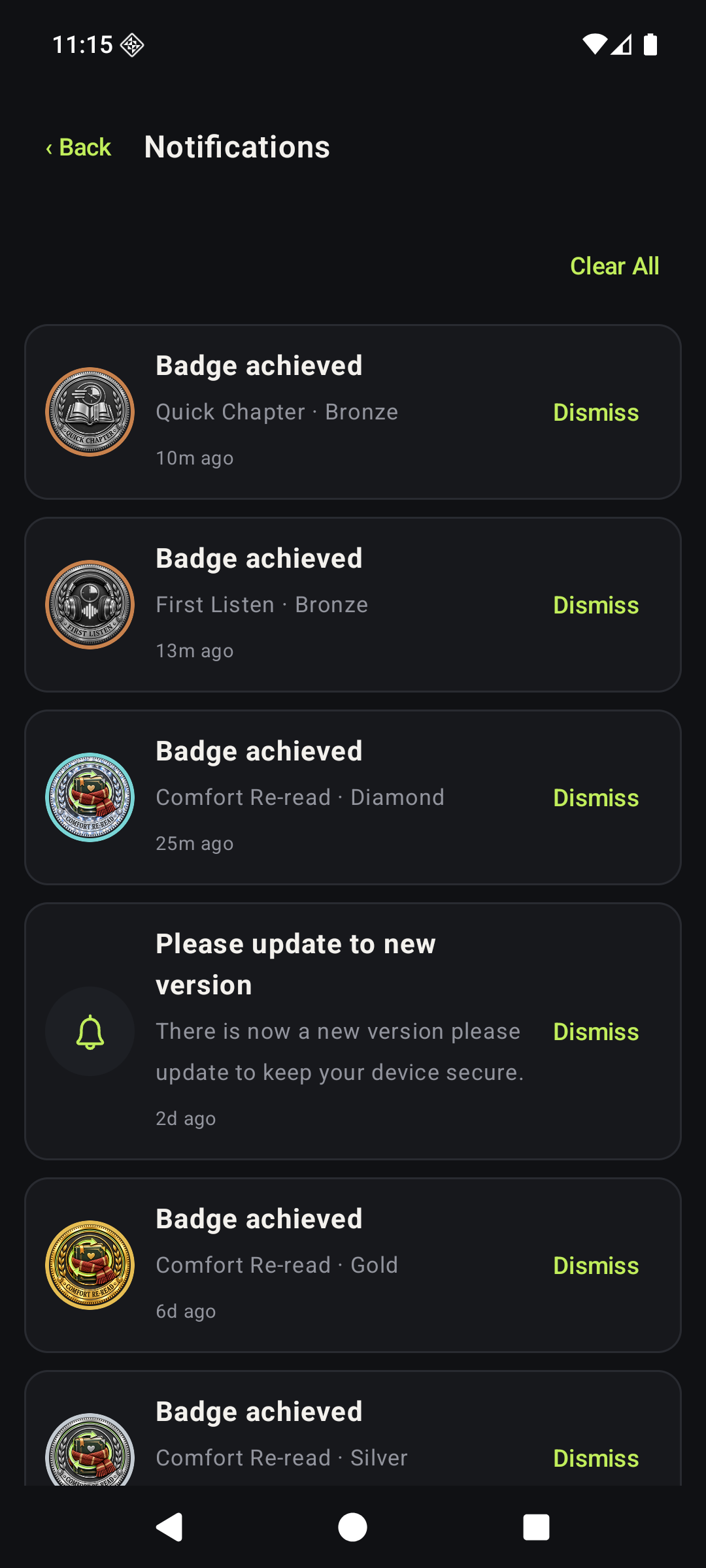
Tap the bell to open the in-app Notifications list. A notification can show a badge image, achievement tier, and time. Tap Dismiss on one item or Clear All for the list, then use Back to return.
Change notification categories with the switches in Your Profile. The current Android client does not yet present Aegis server news and service alerts; those notices are available in the web app and updated iOS app.
Use Android system controls
While audio is playing, Android can show Glossa Listen controls in the notification shade or media controls. Use them to pause or resume without returning to the app. Android's notification settings also let you allow or block Glossa Listen alerts at the operating-system level; these controls are separate from the category switches inside Your Profile.

