
GLOSSA LISTEN DOCUMENTATION · IPHONE
iOS app guide
Applies to Glossa Listen v1.0.0
Use Glossa Listen on your iPhone to find a book, listen by chapter, keep a copy for offline use, and follow your progress through a series. These screens show the app in both dark and light appearance.
The screenshots use a sample library and listener account. Book counts, badge progress, and availability on your server will depend on its library and your account.
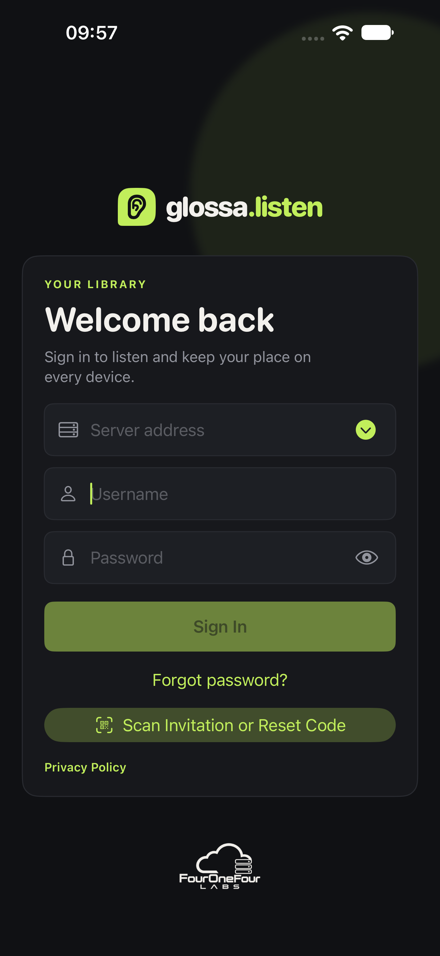
Connect and sign in
- Open the Glossa Listen app and enter your server address in the first field, including
https://. - Enter the username and password for an account on that server.
- Choose Sign In. The connection line beneath the button confirms which server the app is using.
The example connects to https://glossa.fouronefourlabs.com. Use the address supplied by your own server administrator if it differs.
Get around the app
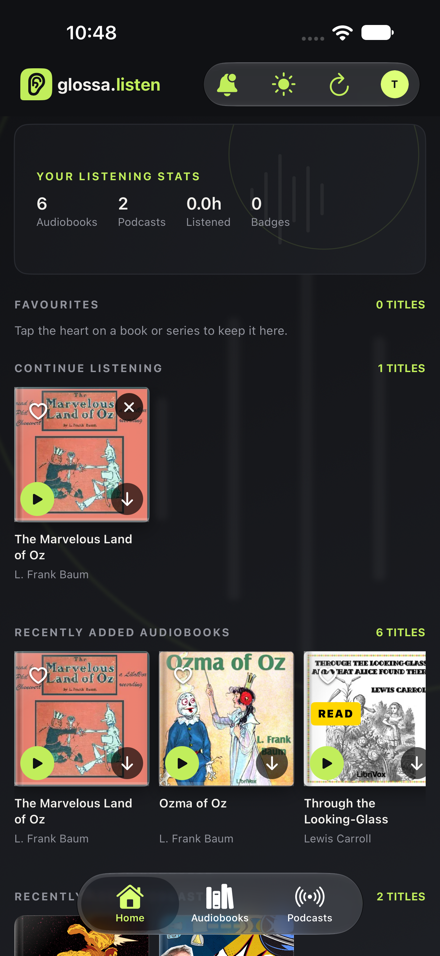
Home opens the Listen Now screen. The top card summarizes audiobooks, podcasts, listening time, and badges. Continue Listening fills when you start a title; Recently Added Audiobooks shows new library items.
Use the bottom bar to switch between Home, Audiobooks, and Podcasts. The top controls open notifications, switch light or dark appearance, refresh the library, and open your account menu.
A book card has a play button and a download button. Open the card for its full details.
Find and inspect a book
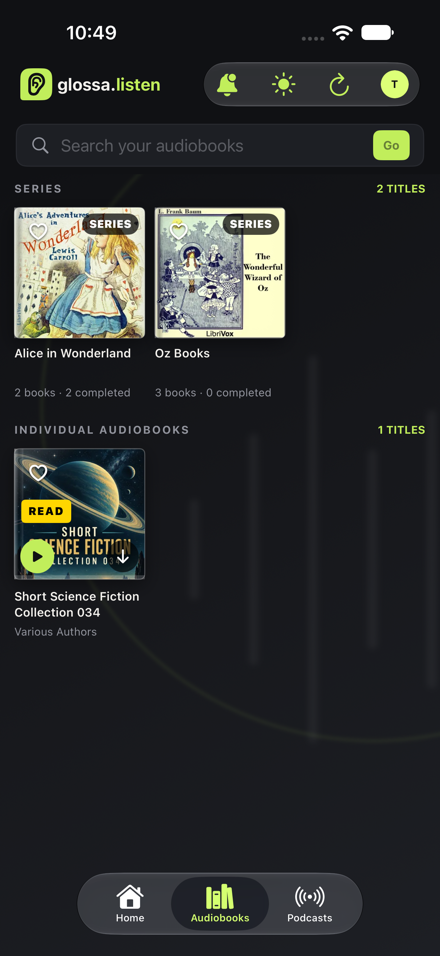
- Choose Audiobooks in the bottom bar.
- Type a title or author into Search your audiobooks and choose Go, or browse the Series and Individual Audiobooks sections.
- Tap a series to see its books in order, or tap a book to open its details.
The book details sheet shows the cover, credits, duration, description, ratings, reviews, and chapter start times. Choose Play to start, Download to save it for offline listening, or Mark as Read to record completion manually.

Rate and review a book
- Open the book details screen and scroll to Ratings and reviews.
- Choose Rate this book.
- Select a star rating, add an optional written review, and save it.
The overall rating and review count appear first. Reviews underneath show the listener name, star rating, review text, and date. Your server may require you to sign in before submitting a review.
Listen and move between chapters
- Choose Play on a book card or its details sheet to open the player.
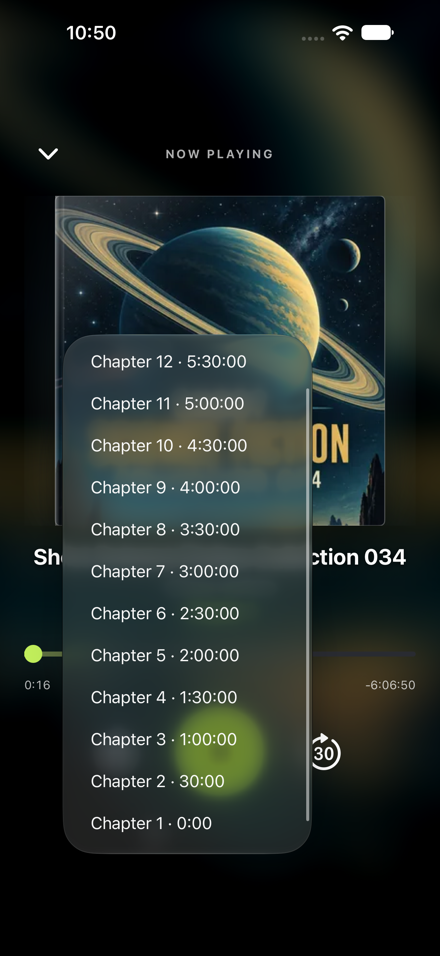
- On Now Playing, use the progress bar to seek and the circular-arrow controls to skip back 15 seconds or ahead 30 seconds.
- Tap the chapter name to open the chapter picker, then tap a chapter to jump to it.
- Tap the playback-speed control to choose a different listening speed.
- Collapse the player to keep browsing. The mini-player remains above the bottom navigation with the current title and chapter.
After playback starts, the book card shows elapsed progress in place of the initial STREAM label.


Find and play podcasts
- Choose Podcasts in the bottom bar.
- Browse shows already available from your server, or search for a title or topic.
- Open a show to view its available episodes.
- Choose an episode to listen, or download it before using Offline Mode.
Podcast availability is managed by your Glossa Listen server. Search results and episode lists can change as feeds publish new episodes.


Download and use Offline Mode
- While connected, tap the downward arrow on a book card or Download in its details.
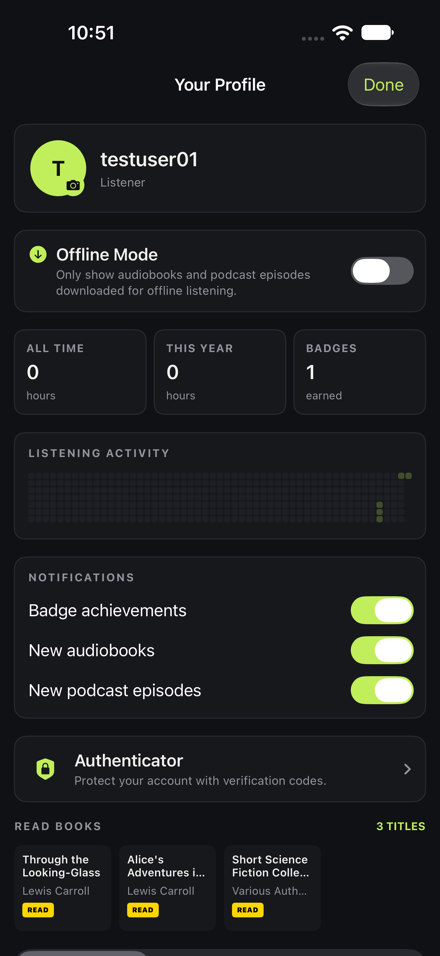
- Open the account menu and choose Your Profile.
- Turn on Offline Mode to show only audiobooks and podcast episodes already downloaded for offline listening.
Offline Mode filters the library; it does not download a title by itself. Download the content you need before going offline.
Follow series and badge progress
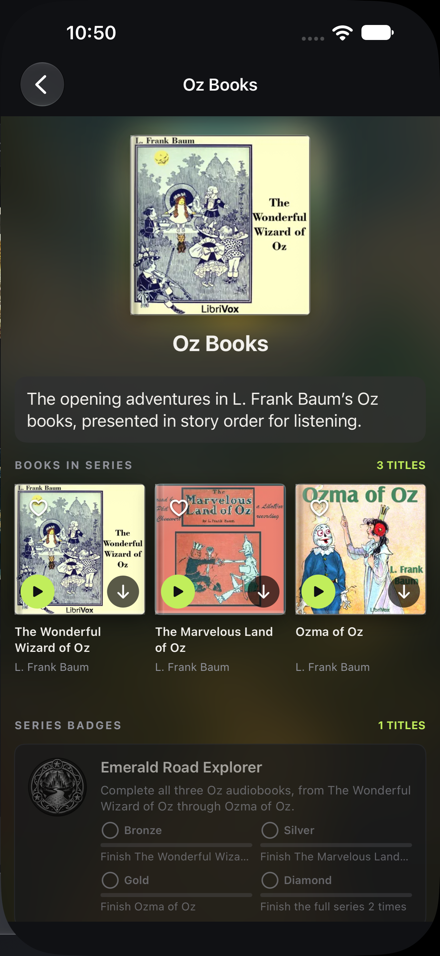
Series cards group related books and show their reading order. Open one to see its description, books, themed artwork, and badge milestones. The Alice example has two books; the Oz example has three.
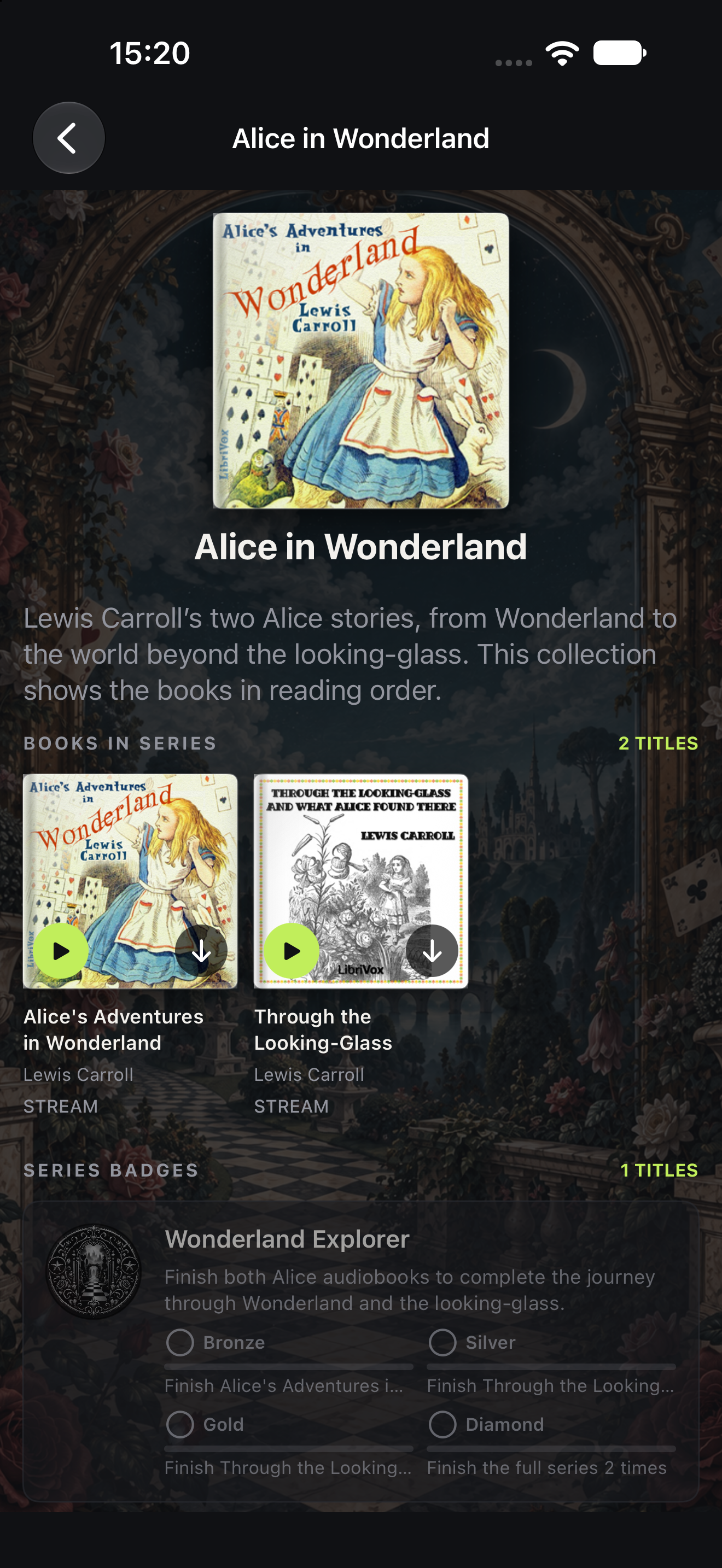
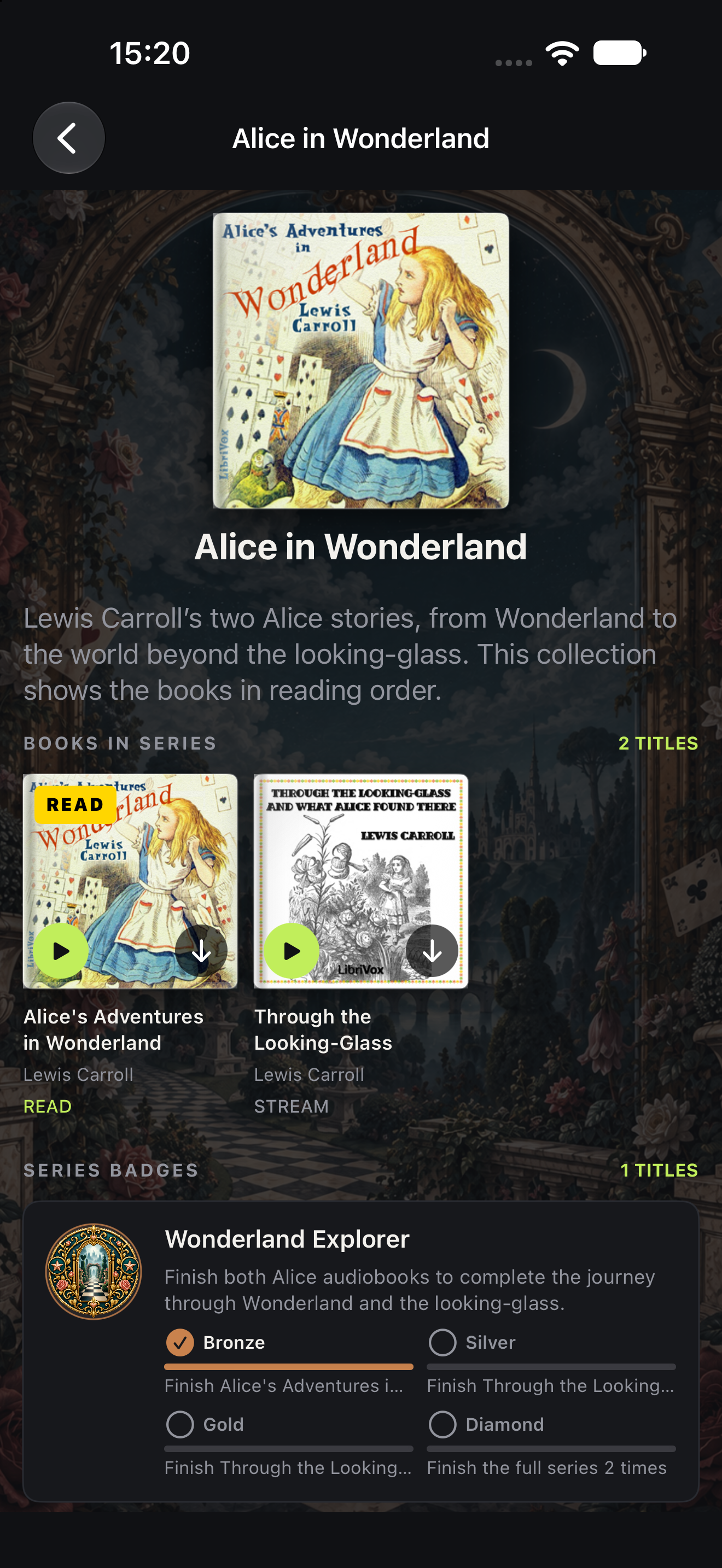
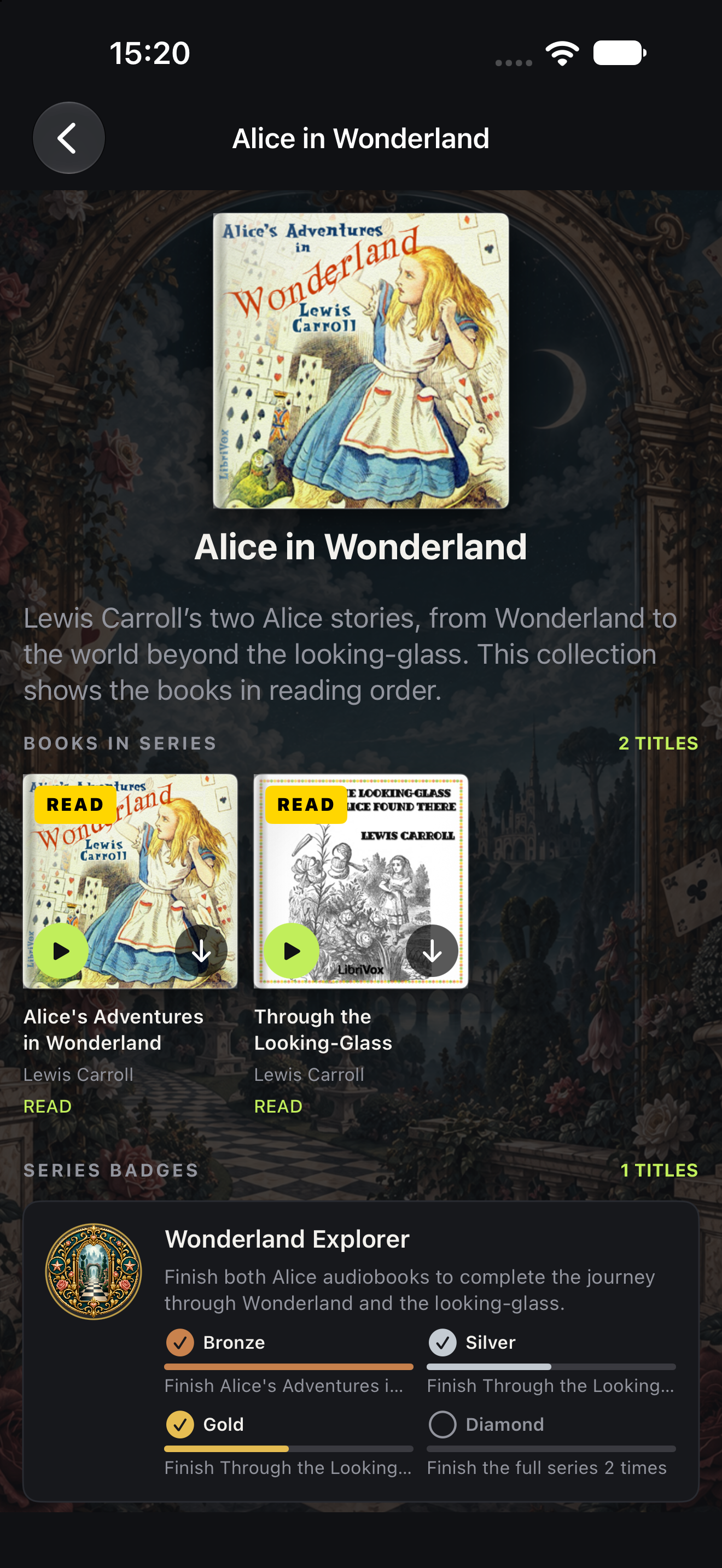
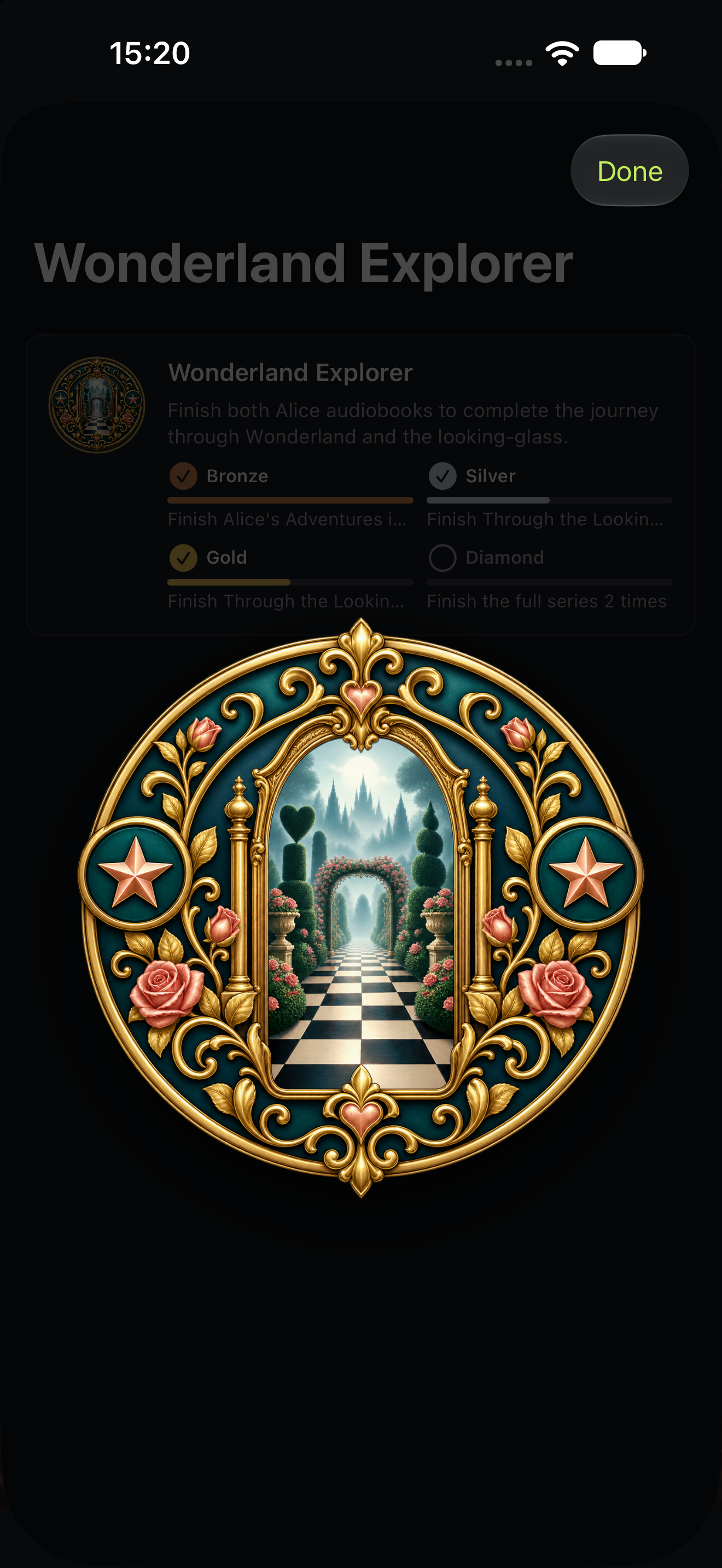
The badge card shows Bronze, Silver, Gold, and Diamond requirements. In these example screens, marking the Alice books as read changes the book labels and visible badge progress; Diamond remains locked with a full-series replay requirement. Tap a badge to view its artwork at full size.
Use your profile and settings
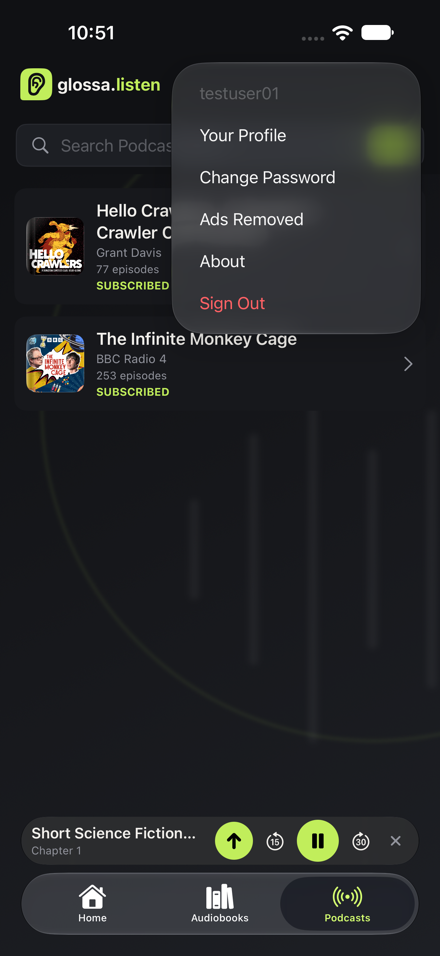
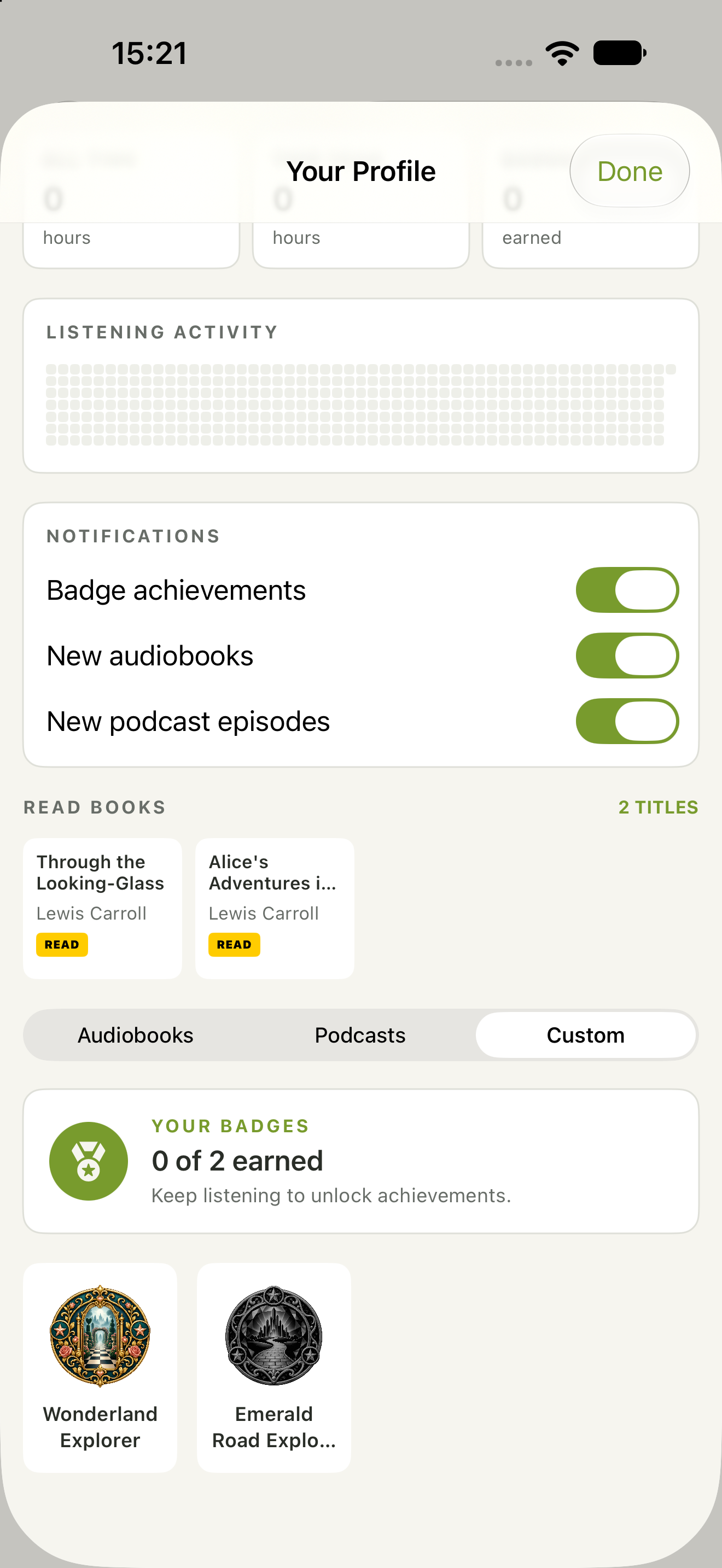
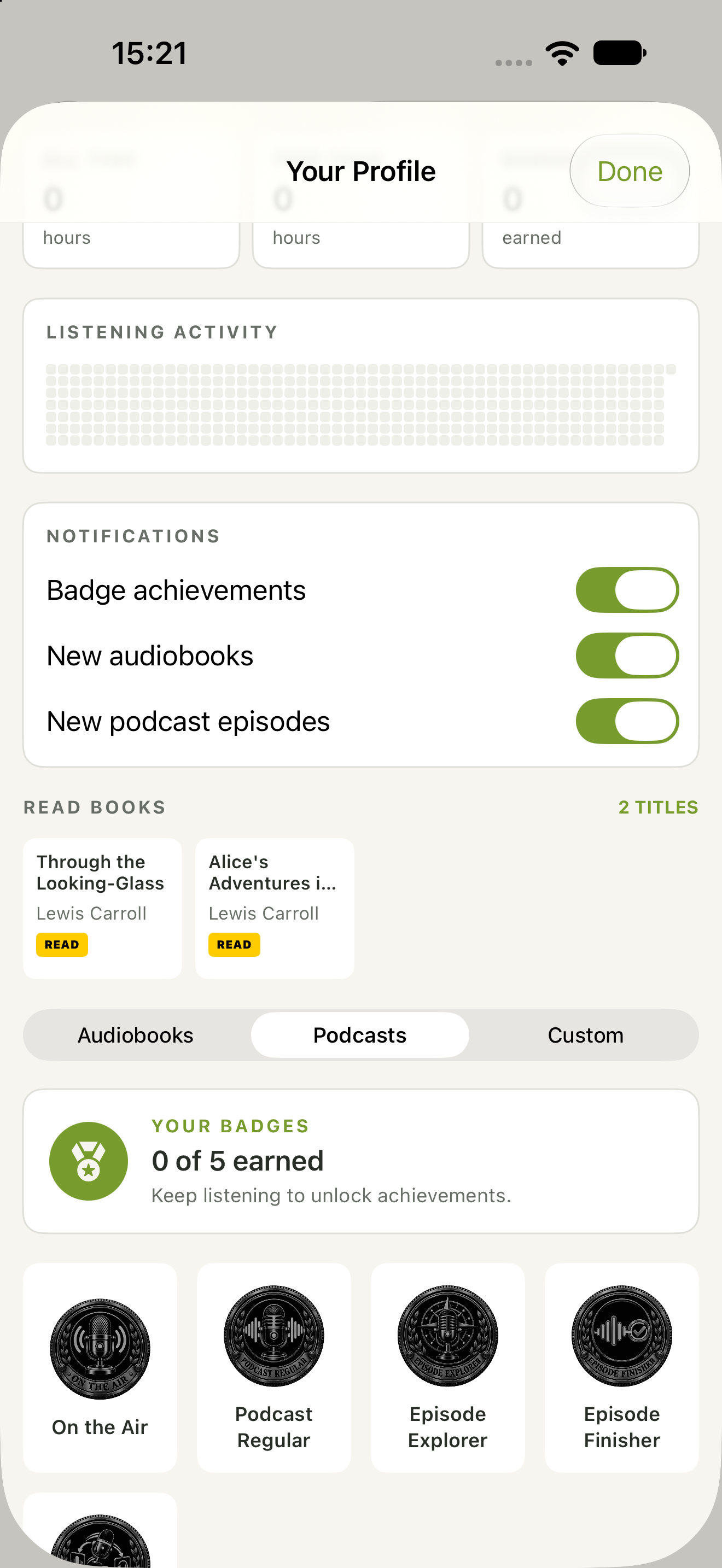
Tap the avatar in the top bar to open Your Profile, Change Password, or Sign Out. Your Profile shows your role, listening totals, activity, badge count, and titles marked read.
Use the notification switches to choose whether to receive badge achievement, new audiobook, and new podcast episode alerts. The badge tabs let you browse audiobook, podcast, and custom achievements. A badge count reflects your account at that moment, not the number available on every server.
Review notifications
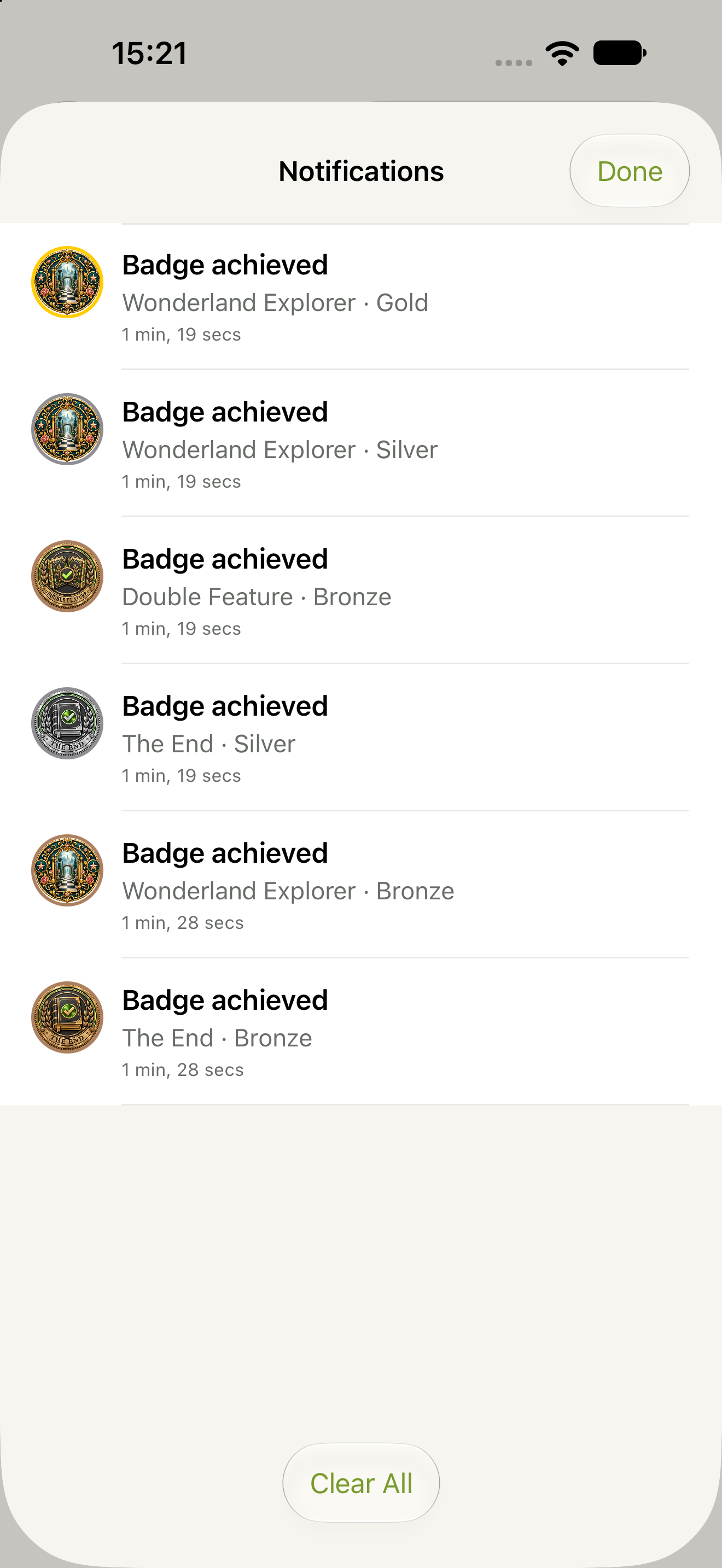
Tap the bell in the top bar to see in-app notifications, including badge achievements and supported server news or service alerts. Aegis notices can also appear as dismissible popups; they remain in the inbox after dismissal. Use Clear All to empty the in-app list, then Done to return to the library.
To change which kinds of alerts you receive, open Your Profile → Notifications and adjust the switches there.