GLOSSA LISTEN DOCUMENTATION · SERVER
Set up podcasts with Podcast Index
Applies to Glossa Listen v1.0.0
Glossa Listen uses Podcast Index to help you find podcasts. A server administrator first creates a Podcast Index account, then adds its API key and secret in Glossa Listen.
Keep the secret when it appears
Podcast Index says the API secret is shown only once on its New Key screen. Record the key and secret before dismissing that screen, then enter them in Glossa Listen.
1. Create a Podcast Index account
- Open the Podcast Index signup page and sign up with an email address.
- Check that email inbox for the message from Podcast Index.
- Open the link in the email to continue the account setup.
The Podcast Index site directs developers to its account site for API keys.
2. Get the API key and secret
- Return to the Podcast Index website after following the email link, and sign in if prompted.
- On the developer account page, create a new key if you do not already have one.
- When the New Key screen appears, record both the Key and Secret. The page says this is the only time the secret will be shown.
3. Add the keys in Glossa Listen
- Sign in to Glossa Listen as a server administrator and choose Podcasts from the left menu.
- On Find podcasts, open Set up Podcast Index credentials.
- Paste the Podcast Index Key into API key, and the Secret into API secret.
- Choose Save credentials.
Glossa Listen says the saved credentials are stored on the server and are not shown again.
4. Search for a podcast
- On Podcasts → Find podcasts, enter a show or topic in the search field. For this example, enter BBC News.
- Choose Search Podcast Index. Glossa Listen displays matching shows with their publisher, episode count, and an Add show button.
- Check the publisher and description to choose the intended feed. The example search returned several BBC results, including two shows named BBC News and the Global News Podcast.
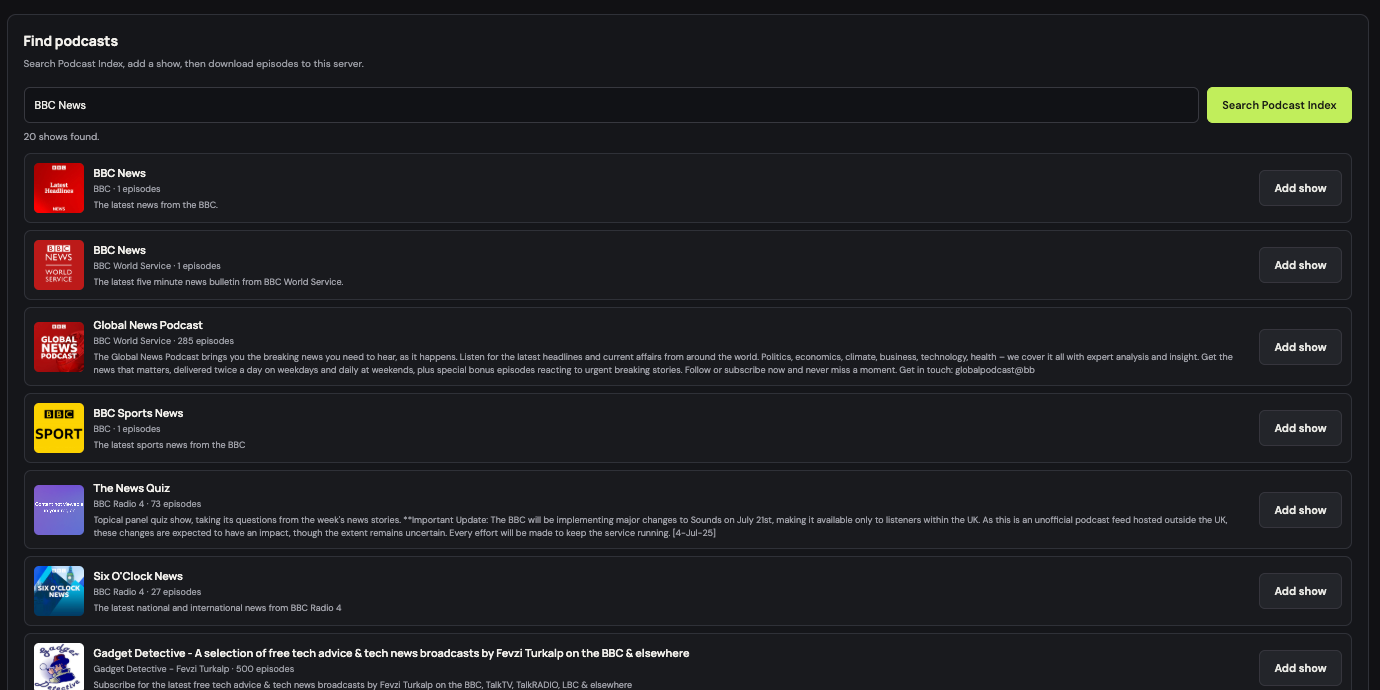
Choose Add show when you find the right feed. Glossa Listen then lets you download its episodes to the server. More detail on importing and listening will be added here.
Need help with Podcast setup?Contact support